Claude can write MicroPython just fine. The annoying part is everything after that, getting the code onto a board, connecting to the REPL, figuring out why the pin numbers are wrong, iterating. I wanted Claude to be able to do all of that itself, talk directly to the hardware while I watch.
ViperIDE is a browser-based IDE for MicroPython and CircuitPython by Volodymyr Shymanskyy. It connects to devices over USB, Bluetooth, or WiFi and gives you a file manager, editor, and REPL terminal. If you haven’t tried MicroPython before it’s one of the easier ways to get started.
I’ve written an extension that lets Claude control ViperIDE remotely. It can connect to your board, manage files, run code, read the REPL, basically drive a full development session. You see everything happening in the browser and can jump in whenever you want. It works with both Claude Desktop and Claude Code, I’ll demo Desktop here.
Source is at github.com/andrewleech/ViperIDE.
What you need
Any board running MicroPython. For this I’m using a YD-RP2040, a Pico clone with an onboard Neopixel LED, but a regular Pico, ESP32, STM32, whatever, all works. If you need to flash MicroPython first, the download page has firmware for most boards. For Pico-style boards it’s just drag and drop a .uf2 file.
You’ll also need Claude Desktop (or Claude Code) installed.
Installing the extension
Download the viperide-mcp-0.5.2-mcp.1-<arch>.mcpb file from the latest release.
In Claude Desktop, open Settings (menu icon bottom-left), go to Extensions, click Advanced Settings, then Install Extension, and pick the .mcpb file.
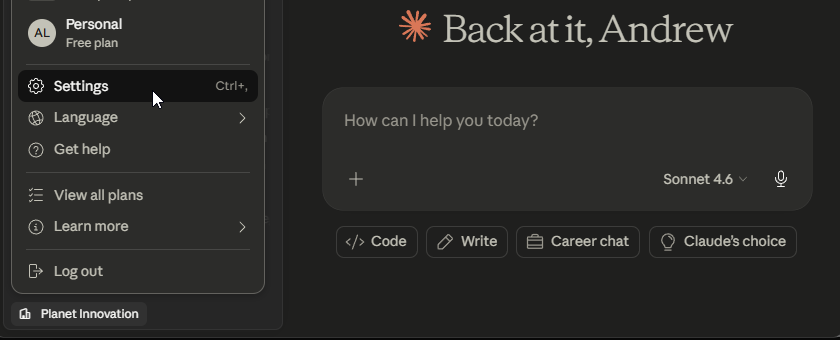
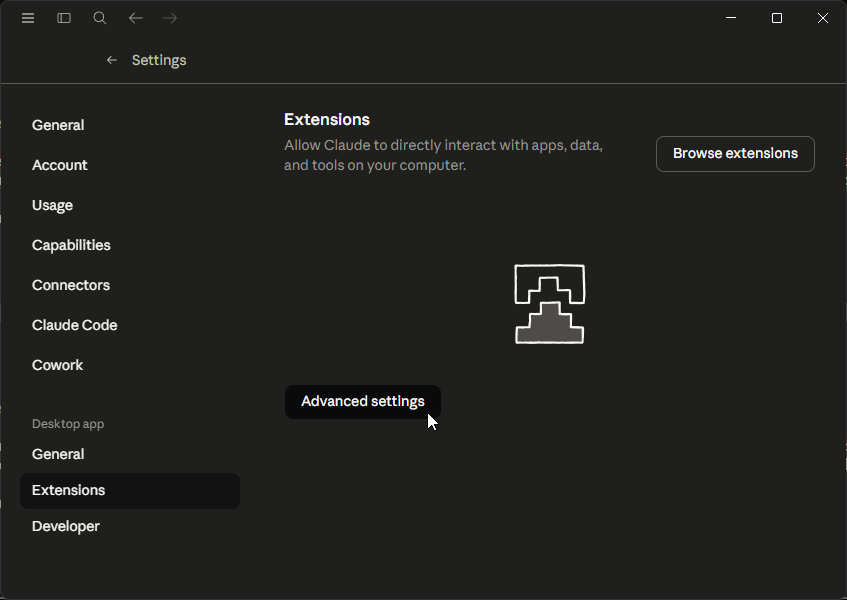
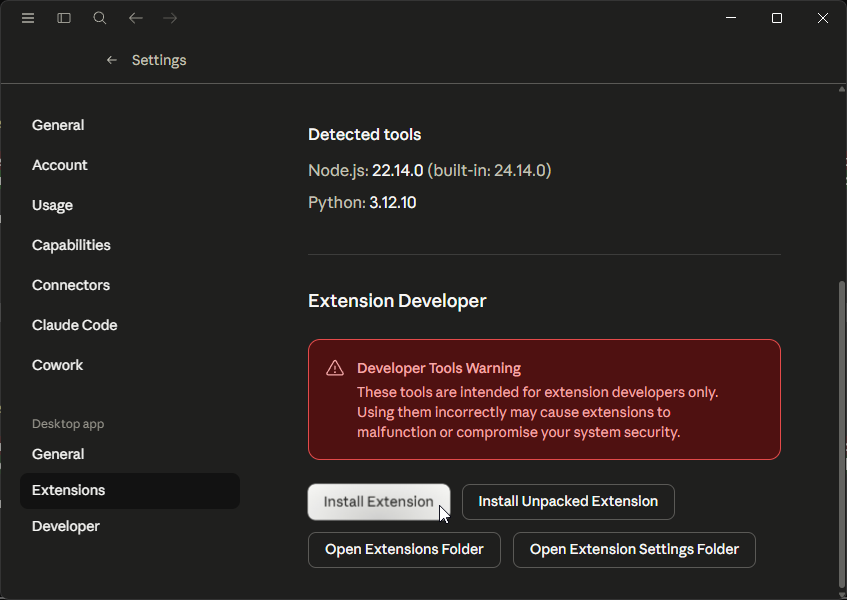
You should see ViperIDE listed with about 20 tools available, hit the “Install” button and it’ll be ready to use.
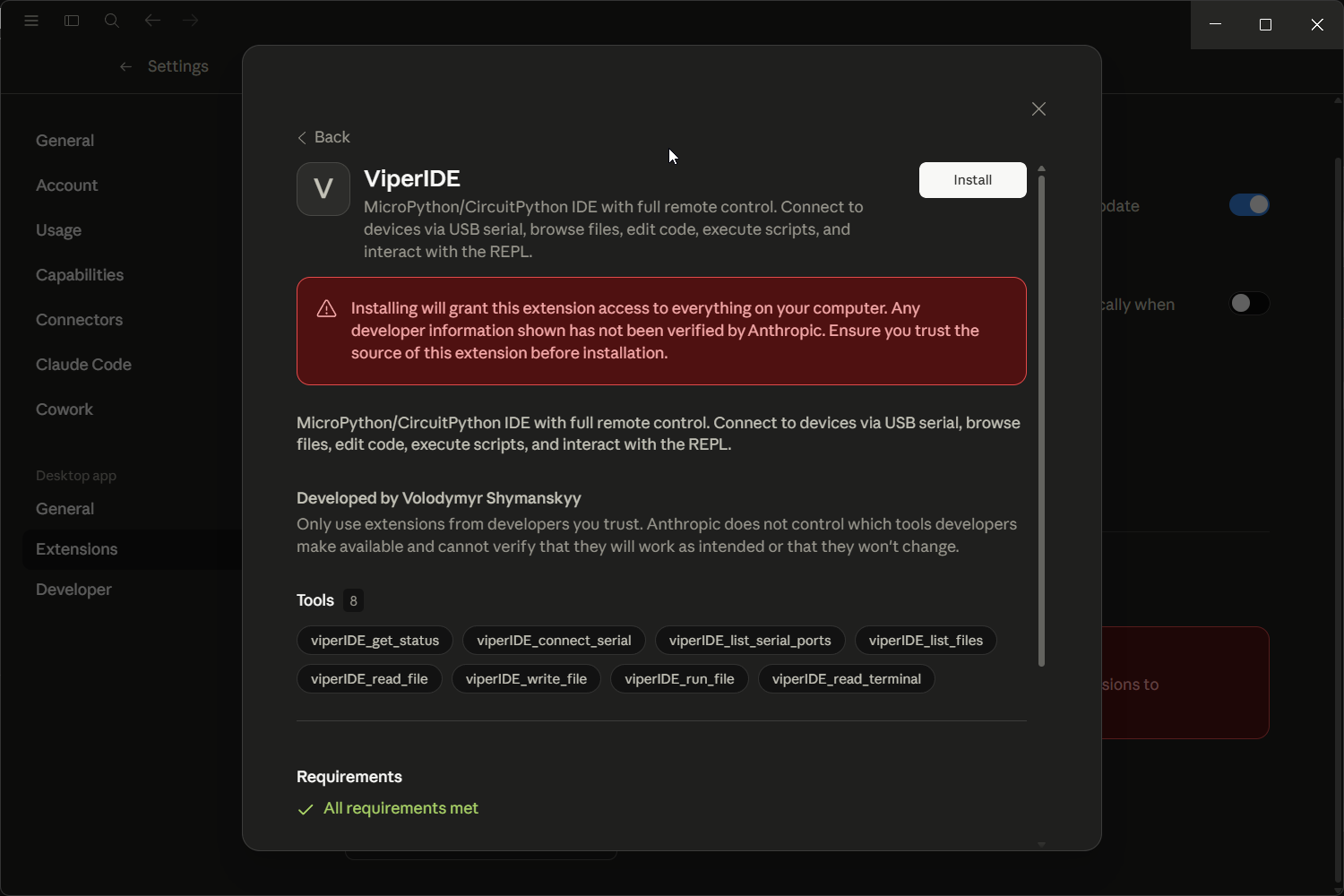
Connecting to a device
Plug in the board and ask Claude something like:
Check what MicroPython devices are connected.
or
Connect ViperIDE to the USB MicroPython device.
ViperIDE opens in your browser and connects to the board over USB serial. The extension runs a local serial bridge so the connection happens without the browser’s WebSerial permission picker, Claude just handles it.
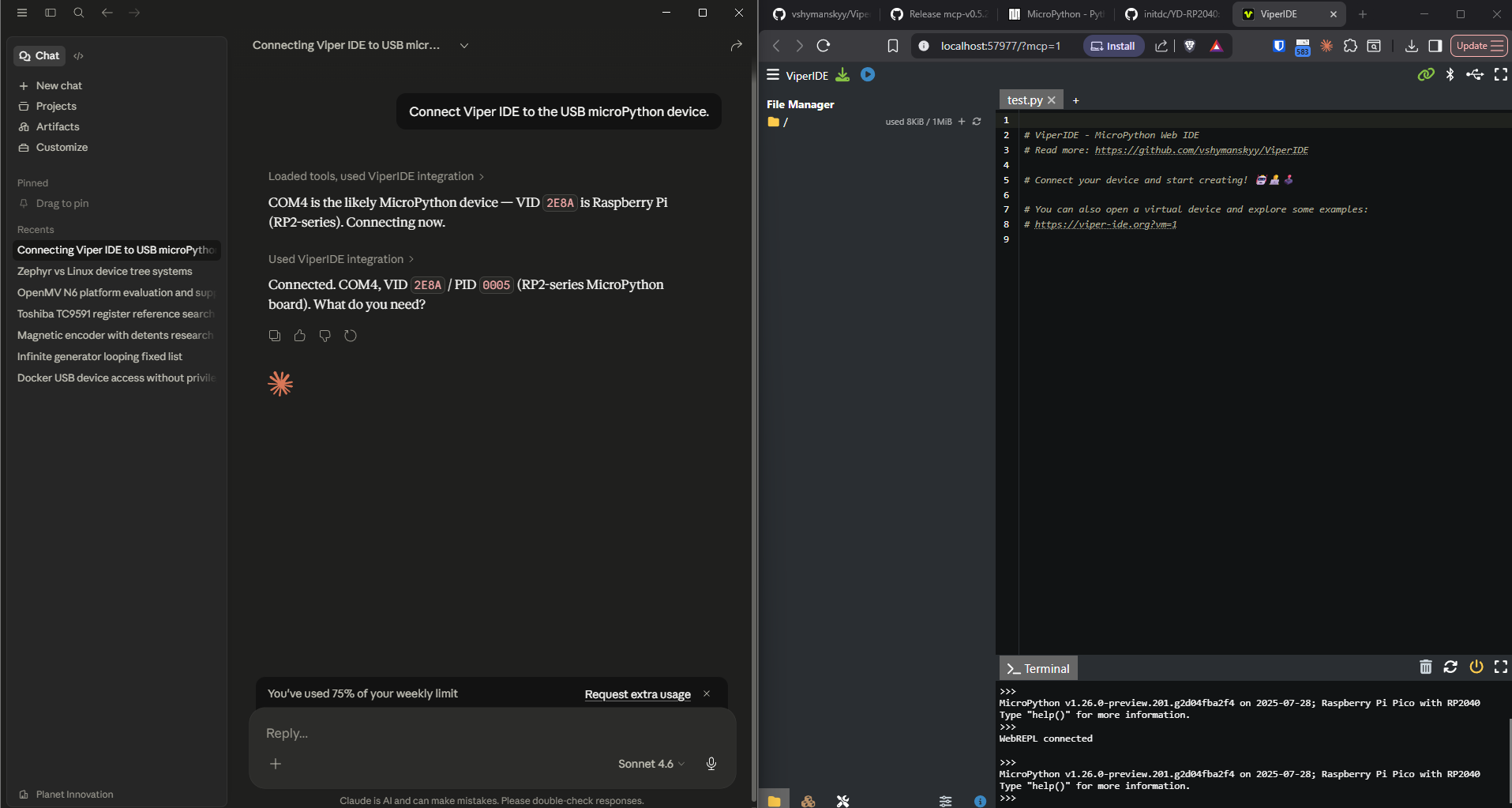
The browser window stays open the whole time. You can see the file listing, terminal output, everything Claude is doing on the device.
Talking to the hardware
Once connected, you can just ask Claude about the device.
Describe the device to me.
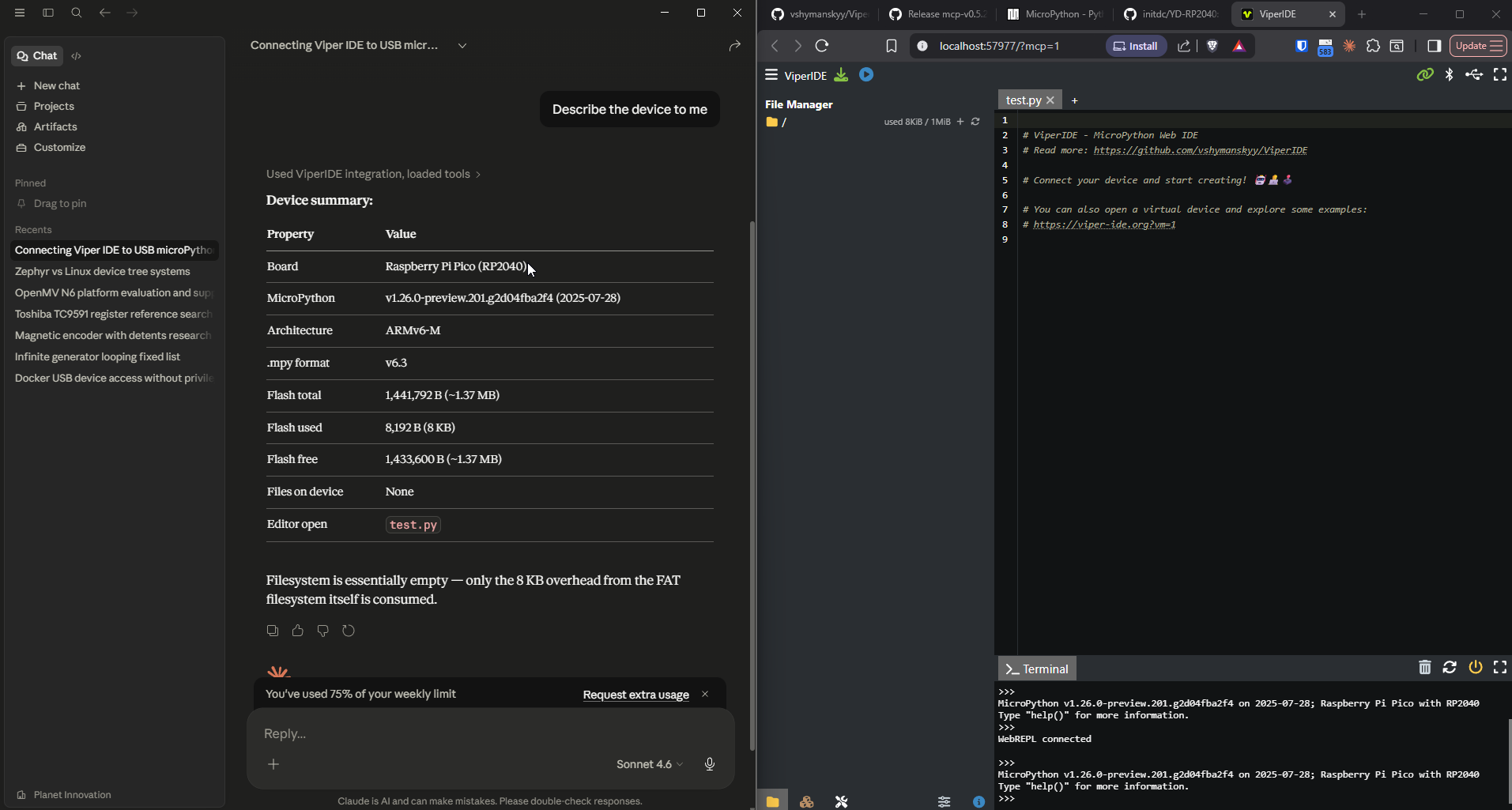
It reads the firmware version, board name, file listing, available modules. If you’re picking up a board you haven’t used before this is a pretty quick way to get oriented.
Then I asked:
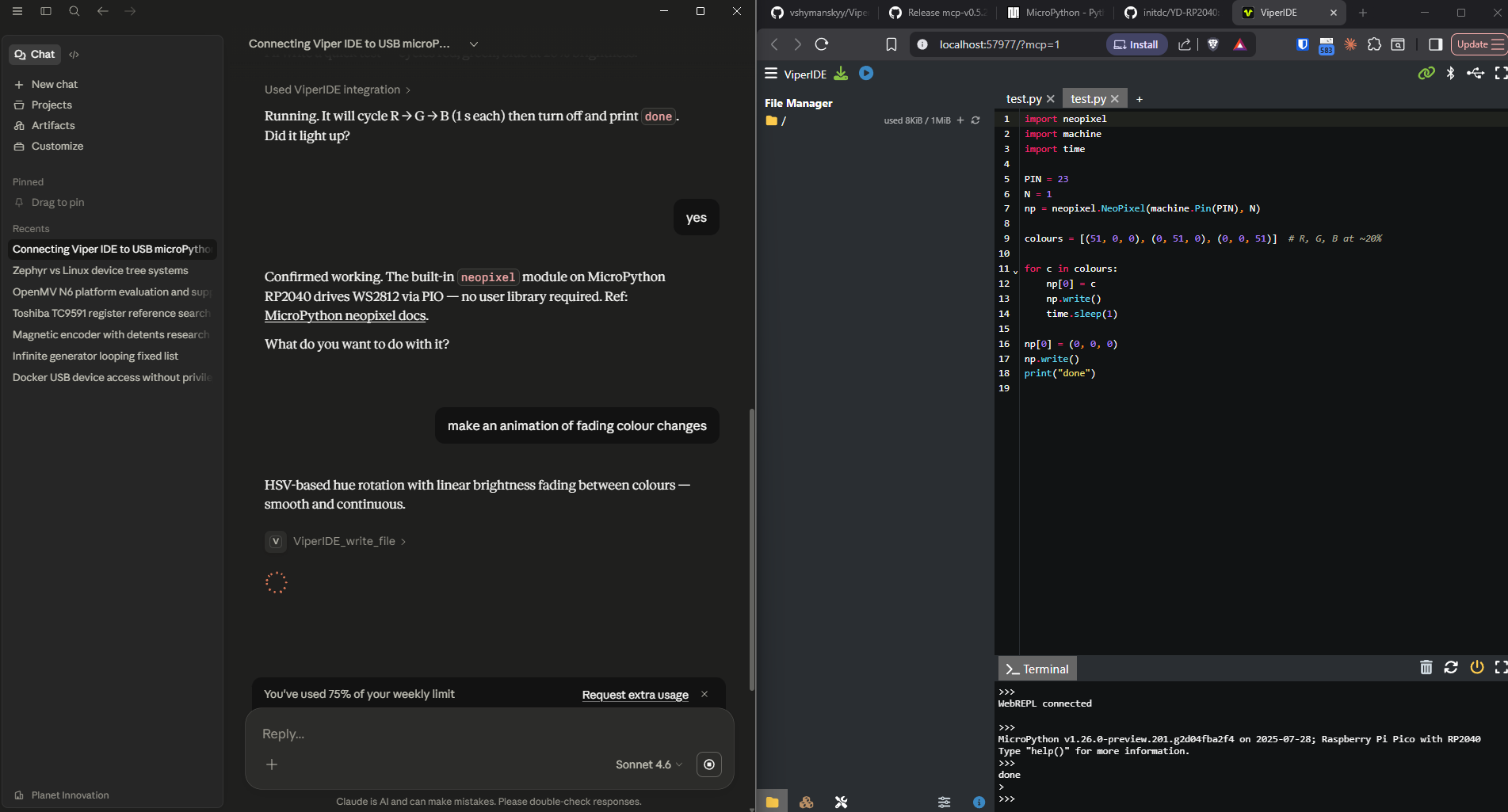
There is a Neopixel connected to GPIO23. Can you use it?
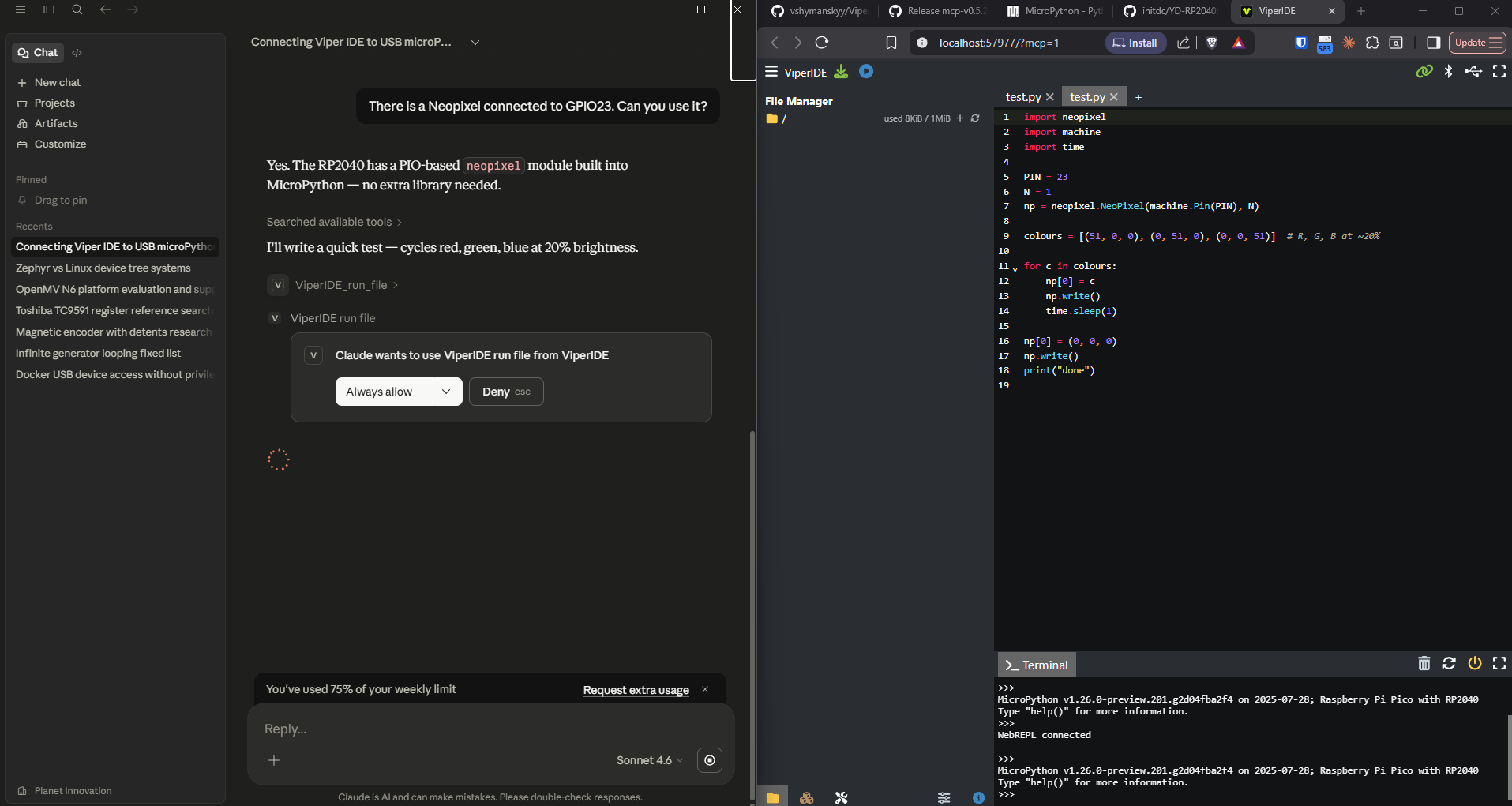
Claude wrote a script using the neopixel module, uploaded it to the board, and ran it. The LED cycled through red, green, and blue.
Make an animation of fading colour changes.
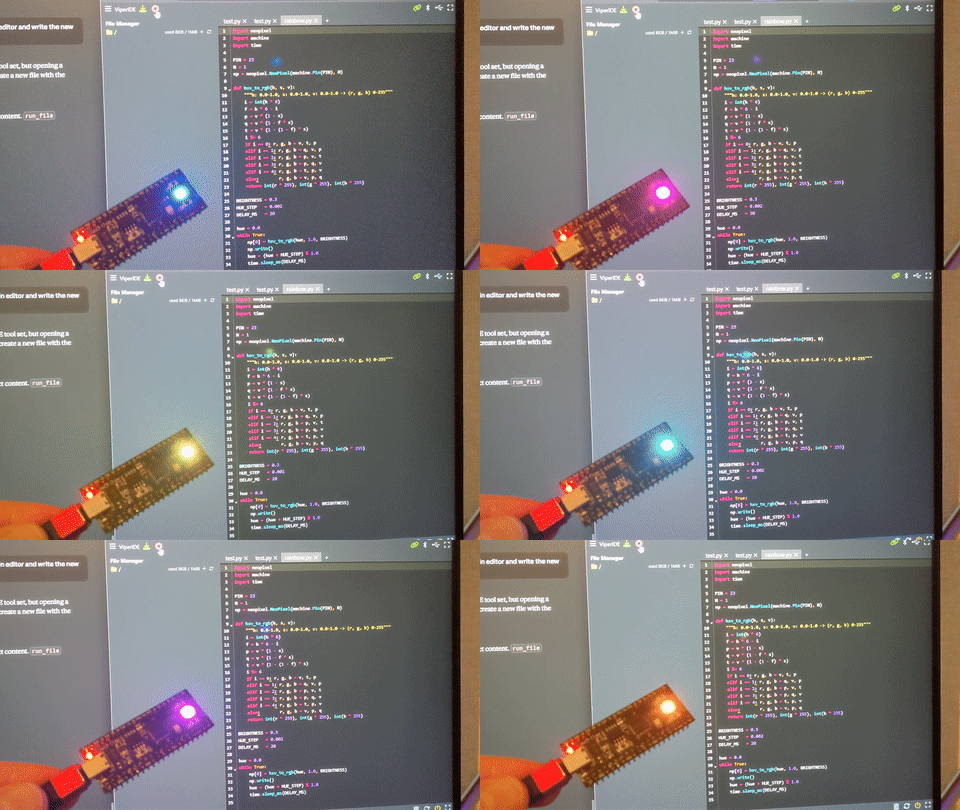
It updated the script to cycle through colours with smooth transitions, saved it to the device, ran it. The whole thing from “can you use the LED” to a running colour animation took only a minute or two.
How it works
The extension is an MCP server that sits between Claude and the browser. Claude sends tool calls over stdio, the MCP server forwards them to ViperIDE over a local WebSocket, and ViperIDE does the actual device communication.
Claude Desktop <-> MCP Server <-> ViperIDE (browser) <-> MicroPython Device
     stdio          WebSocket        USB/BLE/WiFi
You keep full visibility. The browser shows every file write, every REPL command, every output. If Claude does something you don’t want you can interrupt it, edit code in the browser, or just close the tab.
Claude Code
If you’re using Claude Code, installation is one command:
claude mcp add viperIDE -- npx -y @andrewleech/viperide-mcp@next
Same tools, same browser UI. You just interact with Claude in the terminal instead of the Desktop app.
What else it can do
The LED demo is a simple example but Claude has access to the full IDE. It can read and write files on the device, run scripts with output capture, install packages from micropython-lib, interact with the REPL directly, reboot the board. Basically anything you’d do in a normal MicroPython dev session.
I’ve tested with RP2040, ESP32, and STM32 boards. If ViperIDE can connect to it, Claude can control it.
Source and releases are on GitHub. The .mcpb extension works with Claude Desktop, npx for Claude Code.